 Git Nav
Compare Git branches: two dots vs. three dots
By Git Nav · Updated
To compare the files at two Git branch tips, use git diff main feature or git diff main..feature. To review the changes on feature since its common ancestor with main, use git diff main...feature. Git Nav supports both comparisons between branches, tags, commits and revisions.
Choose the question before the diff
| Question | Command | Compared endpoints |
|---|---|---|
| How do the branches' files differ now? | git diff main..feature | The tip of main and the tip of feature. |
| What changed on feature since the branches diverged? | git diff main...feature | The merge base and the tip of feature. |
| What changed between releases? | git diff v1.0.0 v1.1.0 | The two tagged snapshots. |
A two-dot diff compares snapshots, so it also reflects work that exists only on main. A three-dot diff uses the merge base for the left side. Swapping the sides changes which branch's work the three-dot form shows. These meanings belong to git diff; the same dot notation has different semantics in git log.
An example with a diverged branch
Suppose both branches started at A. Main then changed the README, while feature changed a function. Comparing the tips shows both differences: the function edit and the README difference. Comparing from the merge base to feature shows the function edit without treating main's newer README as a change made on feature.
git diff main..feature
git diff main...feature
Replace the example names with your own refs. To compare against the latest fetched default branch, fetch first and use origin/main. Git comparisons read the references you have locally.
Read the comparison in Git Nav
- Open a diff tab and choose a branch, tag, commit or revision on each side.
- Select a direct comparison or a comparison from the merge base, depending on the question above.
- Use split or unified layout and the file tree to move through the patch. Hide whitespace changes when they distract from the edit you need to read.
- Mark a file as viewed after reading it, then filter to the files you have left.
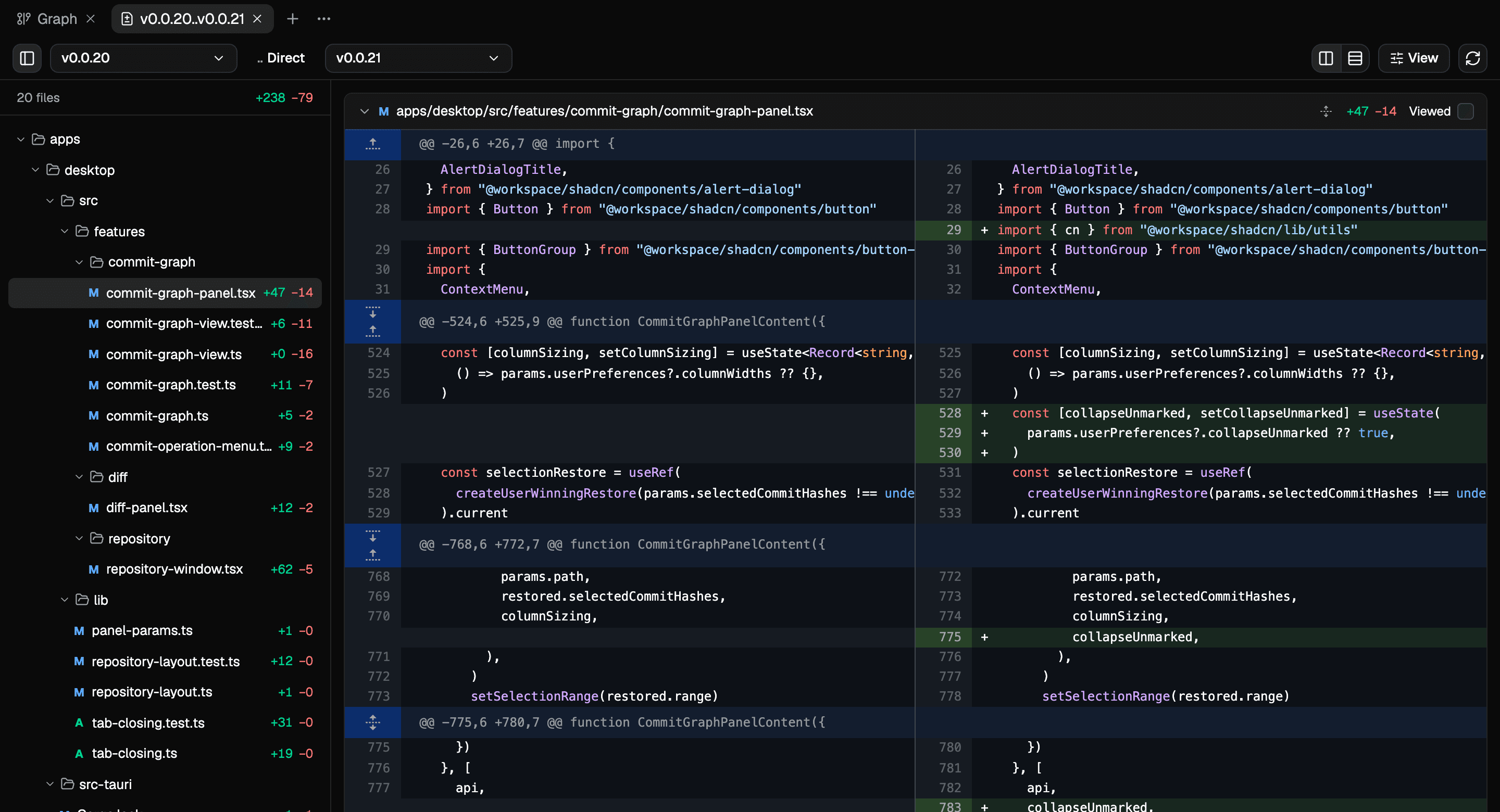
Viewed state is tied to the patch you read. If a rebase or force push changes a file's patch, it becomes unread again. Images have before and after previews with dimensions, so a review can include visual changes alongside text.
Check divergence without checking out the branch
Selecting a branch in the graph opens its details: the tip, upstream, pull request when available, and ahead and behind counts. Those counts measure commits. The diff answers the separate question of how file contents changed.
After a squash merge, a branch can still have commits outside main even when its patch landed. Use the squash-merged branch guide to understand that case before deleting it. To compare changes that you have not committed yet, use the working tree tab.
The Git diff manual documents the endpoint and merge-base forms.