 Git Nav
Use Git worktrees with a Git GUI
By Git Nav · Updated
Git worktrees let you check out several branches from one repository into separate directories. Keep your feature and its uncommitted changes open while you review another branch or prepare a fix. Git Nav lists the repository's worktrees and shows which branch each holds, so you can move between them from a Git GUI.
A worktree is a checkout, not another branch
A branch names a commit. A worktree gives a checkout its own files, HEAD and staging area. Linked worktrees share the repository's objects and branch references, so you do not need a second clone to work on another branch. Staging a file in one worktree does not stage a file in another.
For example, keep feature open in project/ and put a new fix branch in project-fix/. The two directories can run different code while sharing the same repository history.
Create and inspect a worktree
From an existing repository with a main branch, create a new fix branch and check it out in a neighboring directory:
git worktree add -b fix ../project-fix main
git worktree list
git nav ../project-fix
Use a branch name and directory that do not already exist. To check out an existing branch instead, use git worktree add ../project-review review-branch. Git normally prevents the same branch from being checked out in two worktrees at once.
The git nav command comes with the npm installation of Git Nav. You can also open the worktree directory from the desktop app.
Find the branch and its worktree in Git Nav
Open the repository in Git Nav to see its worktrees beside it. The commit graph also carries worktree markers on the corresponding references. Open a worktree in Git Nav, an editor, a terminal or the file manager from its menu.
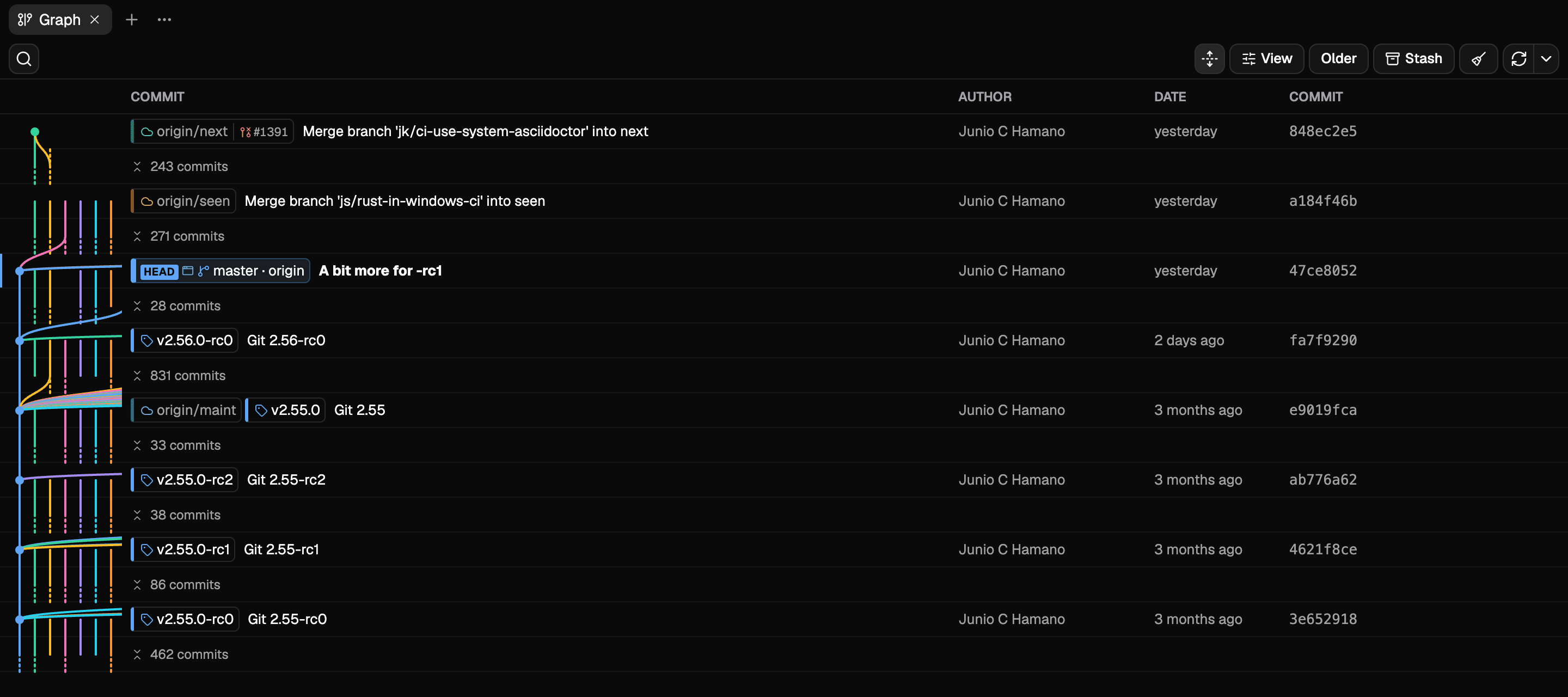
When collapse is enabled, referenced commits keep their rows and the runs between them fold up. This makes it easier to locate the branches you are working on without scanning every intervening commit. Expand a run in place whenever you need its history.
Stage changes in the right worktree
Choose Stage and commit from a checked-out branch's menu, or open a Working tree tab and select the worktree in its toolbar. The tab reads that worktree's staged and unstaged changes. The index it edits is the same one Git commands use when run in that directory.
Check the toolbar's worktree before staging or committing. Each worktree has its own index, even though branch and tag updates are shared. The staging guide explains how partially staged files appear.
Finish with a worktree
Once you have committed or otherwise preserved the work you need, remove the linked checkout with Git:
git worktree remove ../project-fixGit normally refuses removal when a worktree contains uncommitted changes. Removing the worktree leaves its branch in the repository. After the branch is merged, it can be considered separately for branch cleanup.
See the Git worktree manual for the command's options and per-worktree behavior.