 Git Nav
Stage and commit changes in a Git GUI
By Git Nav · Updated
Git commits the contents of the index, also called the staging area. Git Nav's working tree tab lets you review changes, stage or unstage files, write a message and commit. It uses the same index as your terminal and editor, so you can move between them while preparing a commit.
The three versions of a tracked file
- HEAD: the version in the current commit.
- Index: the version prepared for the next commit.
- Working tree: the file you are editing on disk.
A staged diff compares HEAD to the index. An unstaged diff compares the index to the working tree. Editing a file again after staging it can leave the same path in both groups. The next commit takes the staged version, not the later edits still on disk.
git status --short
git diff
git diff --cached
These commands show the status, unstaged patch and staged patch for the current worktree. A new, untracked file appears in status; plain git diff does not display its contents until Git tracks it.
Prepare a commit in Git Nav
- Open a Working tree tab. Check which worktree is selected in the toolbar.
- Read the staged and unstaged file cards. Use a file's checkbox to stage or unstage it.
- Review the staged patch as the contents of the commit you are about to make.
- Write the commit message and choose Commit.
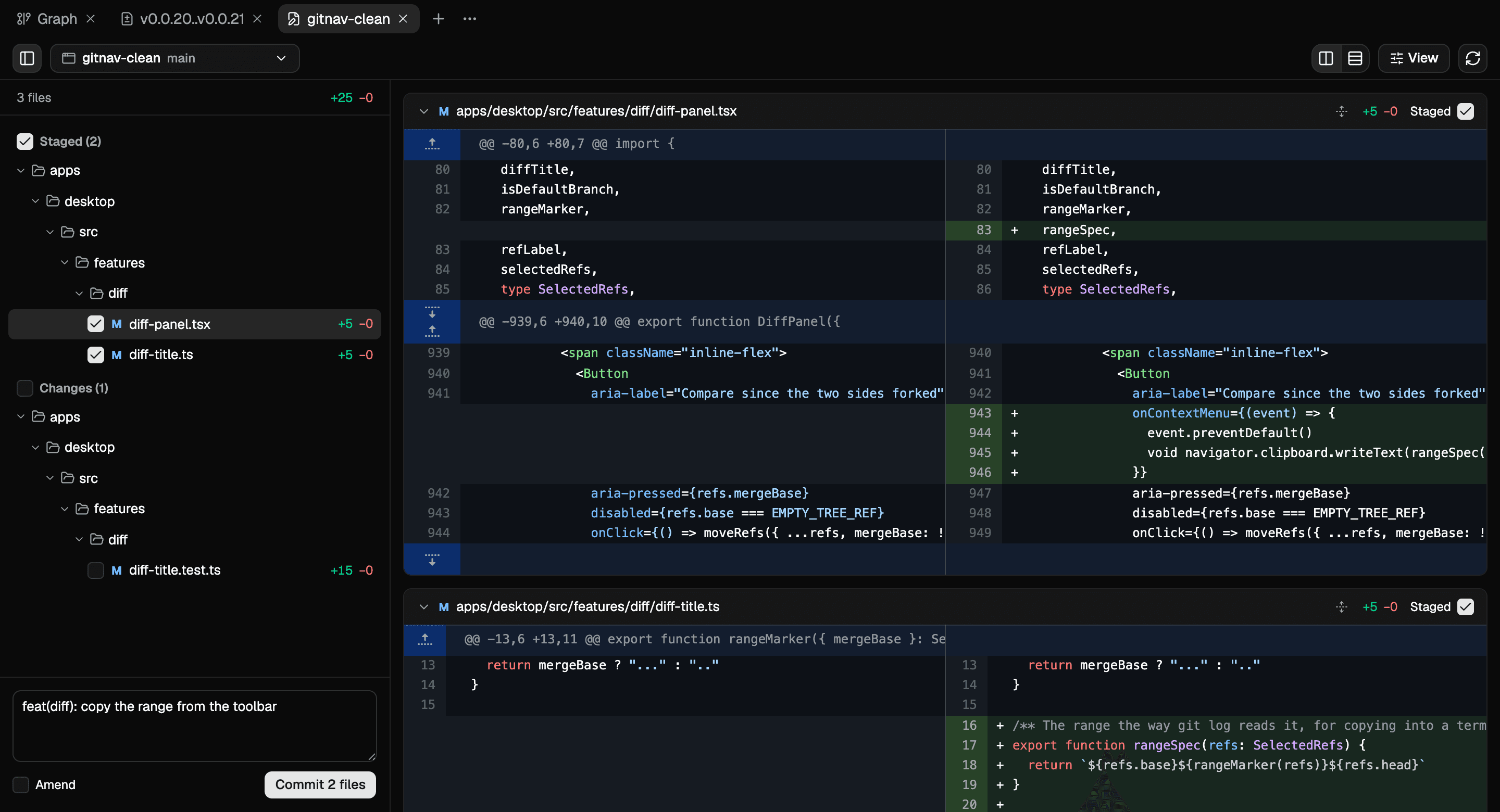
Staging affects the real index immediately. If you stage a file in Git Nav, git diff --cached in that worktree shows it. If you stage from a terminal, the working tree tab picks up the change.
Work with a partially staged file
A single file can contain changes for more than one commit. You can use Git's interactive staging to select individual hunks, then return to Git Nav to review the result:
git add -pGit Nav displays the staged and unstaged portions separately. Its file checkboxes operate on files: staging the remaining changes includes that file's current contents in the index. Keep that distinction in mind when preserving a partial selection made in the terminal.
Commit in one worktree, publish when ready
Each linked worktree has its own staging area. Select the right worktree in the tab or choose Stage and commit from the corresponding branch menu. Your edits in a different worktree stay associated with that checkout. See using Git worktrees with a Git GUI for an example.
A commit records the staged snapshot in the local repository. Pushing is a separate operation that updates a remote. Before publishing, you can compare your branch with its base to read the complete change.
The Git add manual explains index updates and interactive staging. The Git diff manual describes staged and unstaged comparisons.